

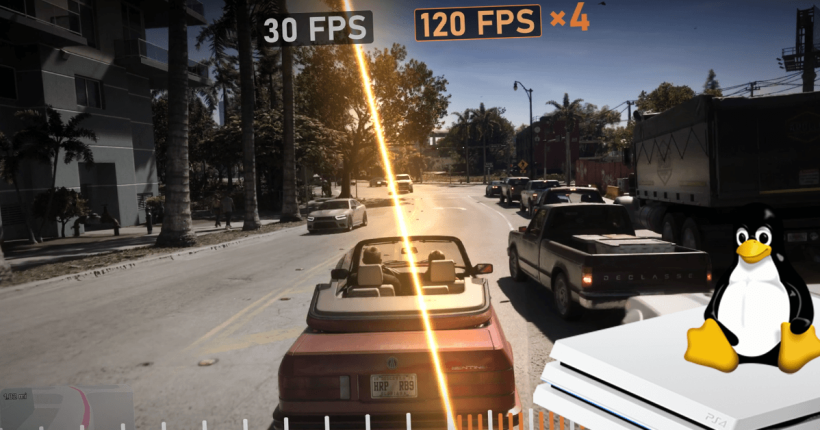
Gamers were pissed when they learned that even a PS5 Pro would play GTA VI at just 30FPS tops! For a modern generation console to be not able to touch the coveted 60FPS mark on a much-awaited game was a major disappointment. It’s sadder when you think of the price of a PS5 Pro and the GTA VI game disc (sorry, code). But, fret not, cause Veyra is here!
Veyra claims to run GTA VI for PS5 at 120+ FPS on PC. We will discuss the ‘how’ part soon, but, let me quickly introduce you to Veyra.
Veyra NRVideo: Real-time GPU Video Enhancement for Windows
So, Veyra or Veyra NRVideo is a super-fast GPU enhancement engine for Windows. The ‘NR’ stands for neural rendering and many of you now already know where we are going with this. Veyra combines AI-powered super resolution, DLSS5, frame generation and other such technologies to convert a mere 30FPS to 120+ in real time.
What surprises me is that its capabilites are not only limited to local video, but even to capture cards and game streaming. So, pretty much anything you have on your PC can benefit from Veyra.
How does Veyra work?
As already said, Veyra utilises technologies such as DLSS5, Super Resolution, Neural Rendering and Frame Generation to achieve what it claims to achieve. Just a spoiler though, you will need a beefy PC as well for Veyra (more on that later). If you are interested in knowing the actual technical stuff, check out their GitHub page. Do note that both Claude and Cursor Agent are contributors on the project. So, it’s obviously AI-assisted. Check the commits if you are interested in knowing how much of it is actually AI-made.
How to install Veyra NRVideo?
Before jumping into that, let us quickly look into the requirements.
Requirements
1. Windows 11 x64 PC
Veyra is not available for Linux as of now. Moreover, ensure that DirectX 12 is installed (Windows 11 has it by default).
2. Powerful NVIDIA or AMD GPU
Veyra requires support for DLSS5 and many other features that are found in the more beefier GPUs. I assume you will require atleast an NVIDIA RTX 5070 or AMD RX 9070XT to achieve the 120FPS.
3. Capture Card (4K 60FPS)/Remote Play (high speed connection) for GTA VI on PS5
Here are some recommended video capture cards/streaming cards that you can consider for this (affiliate links).
USB Capture Cards
PCIe (Internal) Capture Cards
- Elgato 4K Pro – Buy Now (US/IN)
- Magewell Pro Capture Cards (Extremely expensive, developer confirms it has low latency) – Buy Now (US/IN)
Pro Tip: Black Friday is almost here. Join our Telegram channel or Discord server to receive latest deals!
4. 4K 120FPS Monitor
Here are some recommendations for the best experience (affiliate links):-
- ASUS ROG Swift PG27UCDM (27″, 4K240, QD-OLED) – Buy Now (US/IN)
- Dell S3225QC (32″, 4K120, QD-OLED) – Buy Now (US/IN)
- Acer Nitro XV275K (27″, 4K160, MiniLED) – Buy Now (US/IN)
Pro Tip: Black Friday is almost here. Join our Telegram channel or Discord server to receive latest deals!
5. Veyra NRVideo Releases for AMD or NVIDIA
How to install Veyra NRVideo on Windows?
- Extract the downloaded portable package for Veyra NRVideo, depending on your GPU.
- Run veyra_qml_ui.exe to start Veyra.
How to upgrade Veyra NRVideo?
The instructions for upgrading versions are provided on their GitHub page. It might change from version to version.
How to setup PS5 with Veyra NRVideo for 120+ FPS GTA VI?
There are two ways to connect PS5 to Veyra NRVideo. let’s discuss them one by one.
Connect PS5 to Veyra NRVideo with Capture Card
- Connect the HDMI cable from PS5 to your capture card and connect it to your PC’s USB port.
- Start Veyra NRVideo on your PC and select your Video Capture Device.
- Set its pixel format and audio input. You will also have to play around with the colour space (PQ, HLG or Rec. 709) and colour range (Limited or Full) settings, depending on the game.
Connect PS5 to Veyra NRVideo with Remote Play
- Connect PS5 to internet and enable Remote Play on the console.
- On PS5, go to Settings > Network > Connection Status > View Connection Status. Make a note of the console’s IP (IPv4 or IPv6).
- Open Veyra on your PC connected to the same network as PS5 and enable Remote Play. Then, discover the PS5 console or enter IP manually to connect to it.
- Click on Get Account ID. This will open a webpage which will generate a numeric or Base64-encrypted Account ID. Copy this back into Veyra.
- After that point, the console should reconnect to Veyra automatically given both the PC and PS5 are online.
Setup Veyra after PS5 is connected
Once connected, the developer says, it’s better to start with all effects disabled. Enable them one-by-one, while keeping an eye on the GPU usage and general temperatures. That will give you the sweetest spot for your PC’s specifications.
If interested, also check their Console and Streaming Guide.
Conclusion
Thanks to AI, gamers are easily able to bypass restrictions that hardware and sometimes, even corporates set on consoles that gamers own and love. We will have more of such projects in the future as well. Stay tuned!
Leave a Reply