

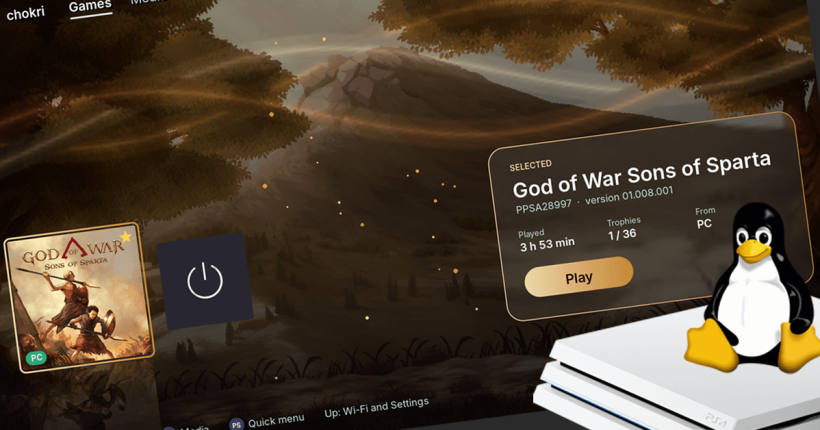
What do you call it when you are able to play PS5 games on a PS4? Since it was never thought of, let’s call it forward compatibility. Well, developer, blue0x1 has done exactly that with EmuFive, a PS5 emulator for PS4. And, no, not a typo. With EmuFive, your PS4 is capable of emulating or playing PS5 games.
But, what’s the catch? Needless to say, there are some. We will discuss that further. First, let us understand a few basics.
How is EmuFive possibile?
You are probably wondering, how a vastly underpowered PS4 is capable of running a better-powered PS5’s games. And, you have a valid question there, especially given the specs difference in their APUs. Let’s quickly check them out.
PS4 Pro vs PS5: Specs
| Specs | PS4 Pro | PS5 |
|---|---|---|
| CPU Architecture | 8-core AMD Jaguar | 8-core Custom AMD Zen 2 |
| CPU Threads & Clock speed | 8 threads at 2.1 GHz | 16 threads upto 3.5 GHz |
| GPU Architecture | Custom AMD GCN | Custom AMD RDNA 2 |
| GPU Compute & Clock speed | 36 CUs at 911 MHz | 36 CUs at up to 2.23 GHz |
| GPU Compute | 4.20 TFLOPS | 10.28 TFLOPS |
| Hardware Ray Tracing | No | Yes |
| RAM | 8GB GDDR5 + 1GB | 15GB GDDR6 |
| RAM Bandwidth | 218GB/s | 448GB/s |
Play PS5 Games on PS4: The Challenge
That should bring us back to the question – How? This is all thanks to another PS5 emulator – KytyPS5. KytyPS5 is a work in progress that has been able to run some PS5 games on PCs and other devices for some time now.
KytyPS5, as blue0x1 notes doesn’t try to emulate the PS4 APU, which would have been a breakpoint. Instead, it is capable of executing a PS5 game’s code directly without having to create a compatibility layer first. Simply put, it’s much faster than a traditional emulator that tries to first emulate the target machine’s specs, which in itself is extremely power hungry on another machine. Since that requirement is obviated by KytyPS5, half the hurdle was already crossed in emulating PS5 games on a PS4.
But, blue0x1 again notes that PS5 games and thus KytyPS5 requires AVX2, FMA and BMI2 instruction sets, which are natively found in a PS5’s Zen 2 APU. Unfortunately, these are missing in the PS4’s Jaguar APU. So, he had to patch Kyty to overcome these difficulties, which finally enabled him to run PS5 games on his PS4. The hurdles don’t stop there though. You can read about it all on the dev’s GitHub page for the project.
How does EmuFive/KatyPS5 work on PS4?
So, blue0x1‘s EmuFive for PS4 is a combination of a few different projects. It uses his PS4 Multiboot to install a minimal Debian for PS4, on top of which KytyPS5 (with patches for PS4 APU) is installed. For the frontend, he has employed a custom homescreen written in Python and pygame. This supports using your DualShock 4 controller to navigate. So, once it is setup, your PS4 upon launching the Linux payload will restart into the EmuFive interface.
How to install EmuFive PS5 Emulator on PS4?
As usual, let’s begin with the requirements.
Requirements
- Jailbroken PS4 with GoldHEN (FTP Server and Payload Server).
- 28GB free space required on PS4; or
- USB drive of 8GB+ capacity.
- PC with FTP Client (e.g., Filezilla), connected to the same network as PS4.
- DualShock 4 controller with USB cable (required for initial setup; can be connected over Bluetooth later).
- Latest PS4 Multiboot files (bzImage, initramfs.cpio.gz, bootargs.txt, linux-2048mb.bin) – Download here.
- Latest EmuFive file (ps5-ps4-rootfs.tar.xz) – Download here.
Step 1. Copy files to PS4
Enable GoldHEN and the FTP server on your PS4 and use FileZilla on your PC to copy the required files to the PS4 drive:-
| File | Destination on PS4 |
|---|---|
bzImage, initramfs.cpio.gz, bootargs.txt |
/data/linux/boot/ |
ps5-ps4-rootfs.tar.xz |
/user/home/ |
linux-2048mb.bin |
/data/payloads/ |
Alternatively, you can use a USB drive with these files on it and a PS4 File Manager app to copy them to their destinations.
Step 2. Launch PS4 Multiboot and install EmuFive
- Use GoldHEN’s payload launcher and point it to
/data/payloads/linux-2048mb.bin. - Let the PS4 restart to PS4 Multiboot.
- Connect DualShock 4 with USB cable and choose EmuFive.
- Depending on whether you want to install to the PS4’s internal drive or an external USB drive, choose either Install to PS4 or Install to USB drive.
- Once installed, you will be booted into EmuFive.
Step 3. Add PS5 Games
You can add games to the PS4 internal drive, USB drive or even have a shared folder on your PC over the network. Instructions for the same are given on the GitHub page.
Conclusion
Please note that I have not personally tested this out yet. Moreover, temper your expectations as well, cause, you will be running a modern console’s games on a console that’s older than a decade at this point.
As usual using rmuxnet kernel😂