

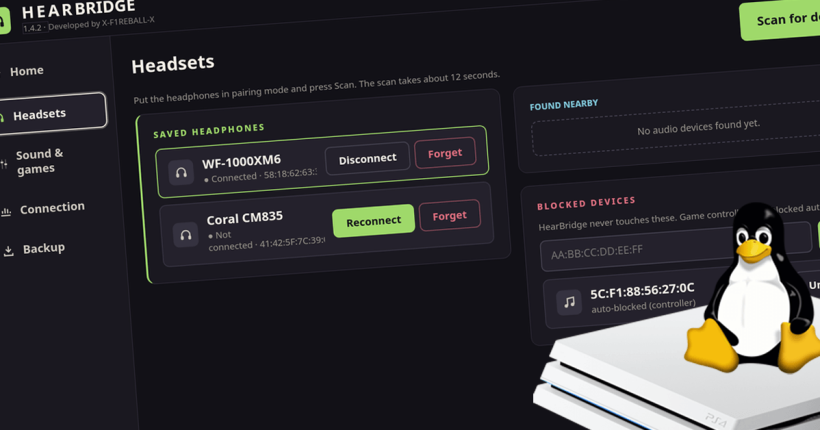
When I got my PS4, I used to spend hours playing it. Late-night sessions were tricky though, cause I had to use earphones connected to the DualShock 4, in order to not disturb anyone else. Why not use a Bluetooth headset, right? Well, I did research that and found Bluetooth headphones for PS4 and PS5 did exist. But, they weren’t cheap:-
- Logitech Wireless Gaming Headphones for PS4 and PS5 – US/IN.
- Turtle Beach Wireless Gaming Headphones for PS4 and PS5 – US/IN.
But, I was neither an audiophile or someone who needed anything fancy. Moreover, I had my trustworthy cheap Bluetooth earbuds that I would have loved to use with my PS4. Unfortunately, PS4 and PS5 don’t all you to do that. But, that has changed due to HearBridge by X-F1REBALL-X. HearBridge for PS4 and PS5 allow you to use any Bluetooth earphone, headphones or speakers with PS4 and PS5. This means gameplay audio can now be streamed seamlessly from your PS4 or PS5 to your own Bluetooth audio equipment.
If you are excited, let’s just quickly jump into the tutorial to see how it works on PS4 and PS5 separately.
How to connect Bluetooth headphones with PS4?
HearBridge for PS4 Dashboard
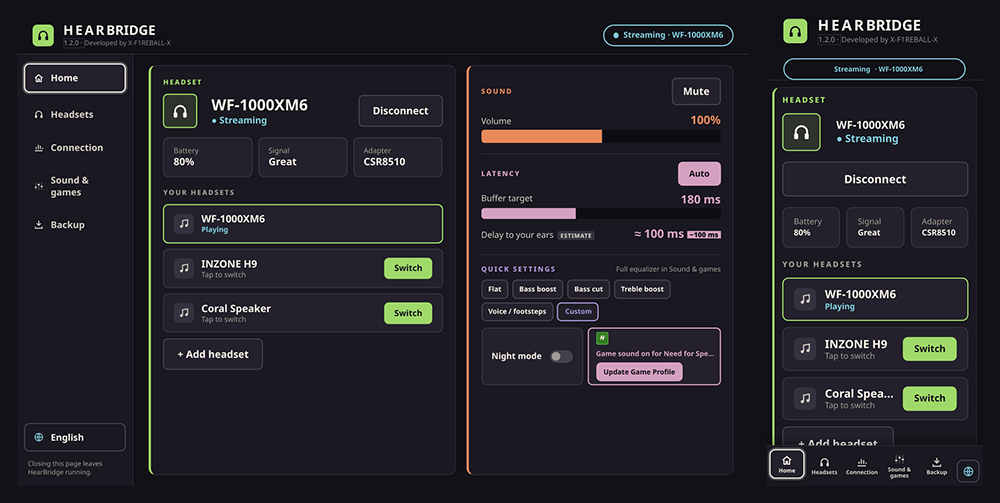
Before beginning with the requirements, here’s something you should understand. HearBridge for PS4, for now, is only capable of outputting the game audio (not system audio) to Bluetooth devices. This is because, the application is currently configured to only output audio which use the 48kHz frequency, which fortunately is the audio used by almost all games. But, in the rare case the game audio uses a different frequency, HearBridge for PS4 will not work. X-F1REBALL-X also mentions that there might be a slight delay or latency when compared to your primary monitor/TV.
Requirements
1. Jailbroken PS4 (upto version 14.02) with GoldHEN installed
Plugin Loader must be enabled. If you are on a version under or equal to 13.52, the BinLoader server must also be enabled.
2. Supported Bluetooth USB dongle
Presently, HearBridge for PS4 supports USB Bluetooth dongles using either the CSR8510 (USB ID – 0A12:0001) or Realtek RTL8761BU (USB IDs – 0BDA:B00C / 0BDA:8771) chips.
To confirm if your dongle is supported, connect it to a Linux computer and run lsusb on a terminal. If it shows any of the USB IDs for the dongle, you are good to go. Alternatively, on Windows, you can check Device Manager to find the dongle’s USB ID. If you don’t have a supported device, get any of the following (affiliate links):-
- TP-Link UB500 – Buy Now (US/IN)
- TP-Link UB600 – Buy Now (US/IN)
- Asus BT600 – Buy Now (US/IN)
- Generic CSR8510 Dongles (Verify before buying) – Buy Now (US/IN)
- Generic RTL8761BU Dongles (Verify before buying) – Buy Now (US/IN)
If you want HearBridge to work out of the box, I recommend buying any of the first three dongles. Others might require additional firmware or code change, at this point.
3. Bluetooth earphones, headphones or speakers with A2DP support
Any of your existing Bluetooth audio equipment with A2DP support will work with HearBridge for PS4. If you don’t have one currently, check out some of the best selling ones on Amazon (affiliate links):-
- Bluetooth earphones – Buy Now (US/IN)
- Bluetooth headphones – Buy Now (US/IN)
- Bluetooth speakers – Buy Now (US/IN)
Some of these are on Black Friday Sale at incredible discounts.
Pro Tip: Black Friday is almost here. Join our Telegram channel or Discord server to receive latest deals!
4. HearBridge for PS4
Download the latest .pkg for your firmware version version from the Releases page.
Get the .pkg that has for-14.xx.pkg in its file name if you are on 14.00 or 14.02. Else, get the one that has up-to-13.52.pkg in its file name.
Connect Bluetooth audio equipment to PS4
- Load GoldHEN using our favourite exploit host.
- Install the .pkg file for your firmware version using the GoldHEN package installer.
- Go to GoldHEN settings. Enable Plugin Loader. If you used the package for upto firmware 13.52, also enable the BinLoader server.
- Plug the Bluetooth USB dongle into the PS4 and open HearBridge tile in the home screen.
- Press OK on the message and then press the cross button (X) or maybe the cirlce (O) on your DS4. This will open HearBridge dashboard on the PS4 browser. Alternatively, you can go to
http://PS4_IP:8090(replace PS4_IP with your PS4’s IP, which can be retrieved from the Connection Settings) on another device connected to the same network as the PS4 to access the dashboard. - Choose Scan for devices on the dashboard and put your Bluetooth audio device in pairing mode. Once it finds your device, click on Pair.
- Once connected, start a game to enjoy audio over your Bluetooth headphone, earphone or speaker!
How to connect Bluetooth headphones with PS5?
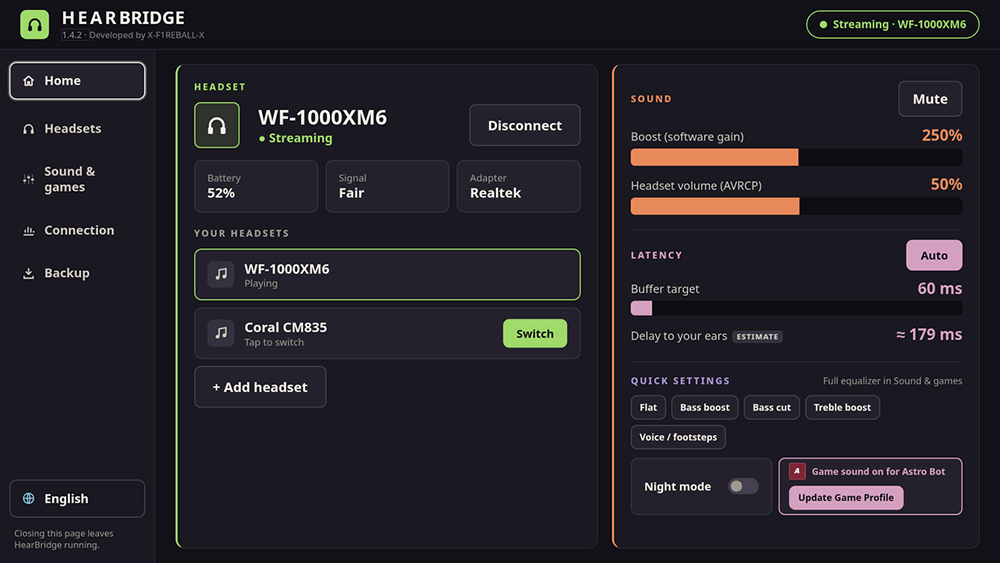
Unlike HearBridge for PS4, the version for PS5 is capable of outputting both the game audio and the system audio) to Bluetooth devices.
HearBridge for PS5 Dashboard
Requirements
1. Jailbroken PS5
2. Supported Bluetooth USB dongle
HearBridge for PS5 supports using both the internal Bluetooth chip or external USB Bluetooth dongles using either the CSR8510 (USB ID – 0A12:0001) or Realtek RTL8761BU (USB IDs – 0BDA:B00C / 0BDA:8771) chips.
You can switch between the internal chip and the external USB dongle by going into Settings > Details > Bluetooth adapter on the HearBridge dashboard on the browser. But, please note that choosing internal may cause clashes and unforeseen issues with Bluetooth audio since both the controllers and the audio equipment will have to share the same Bluetooth chip. In order to avoid this, X-F1REBALL-X recommends using a supported external Bluetooth dongle (check recommended models).
3. Bluetooth earphones, headphones or speakers with A2DP support
Any of your existing Bluetooth audio equipment with A2DP support will work with HearBridge for PS4. If you don’t have one currently, check out some of the best selling ones on Amazon (affiliate links):-
- Bluetooth earphones – Buy Now (US/IN)
- Bluetooth headphones – Buy Now (US/IN)
- Bluetooth speakers – Buy Now (US/IN)
Some of these are on Black Friday Sale at incredible discounts.
Pro Tip: Black Friday is almost here. Join our Telegram channel or Discord server to receive latest deals!
4. HearBridge for PS5
Download the latest .elf for your firmware version version from the Releases page.
Connect Bluetooth audio equipment to PS5
- Send the downloaded .elf to your PS5. On Linux, you can use the socat command –
socat -u FILE:HearBridge-1.4.2.elf TCP:PS5_IP:9021, where you have to replace HearBridge-1.4.2.elf with the proper filename of the version you are using and potentially the location of the file, if it’s not in the current folder. Also, replace PS5_IP with the IP of your PS5 which is connected to the same network as the machine running socat. - Open HearBridge dashboard on the PS5 browser by going to
http://PS5_IP:8090(replace PS5_IP with your PS5’s IP, which can be retrieved from the Connection Settings). You can also visit the same address on another device connected to the same network as the PS5 to access the dashboard. - Go to Settings > Headsets and then, choose Scan for devices on the dashboard and put your Bluetooth audio device in pairing mode. Once it finds your device, click on Connect.
- Once connected, you should now be able to enjoy PS5’s audio over your Bluetooth headphone, earphone or speaker!
Conclusion
I believe the work on the project is still ongoing. In the future, the dev might update the PS4 version to support both system audio and game audio. If/when that does happen, I will update. Stay tuned!
Leave a Reply